 Free & Pro
SuperCycle seamlessly connects to standard Bluetooth Low Energy (BLE) cycling accessories, including wheel speed sensors, cadence sensors, combination speed/cadence sensors, heart rate monitors, and power meters. Sensor setup follows a simple, modular workflow:
- Scan & Save: Scan for your sensor and add it to your Sensor library.
- Pair with Bike: Assign the sensor to your active bike profile.
- Configure Tire Size: For wheel speed sensors or indoor trainers, set your tire circumference (or trainer axle circumference).
- Assign to Display Widget: Long-press any dashboard widget to designate the sensor as its live data source.
Step 1: Scan for sensors and add them to your Sensor library
Before scanning, wake up your sensor so it begins transmitting Bluetooth advertising packets. For wheel or crank sensors, spin the wheel or pedals several times. For heart rate monitors, put on the chest strap or enable Bluetooth broadcasting on your watch.
In SuperCycle, open Settings → Sensors → Sensor library (or tap Scan for sensors). When your sensor appears in the list (in this example, a CYCPLUS S3), tap it to review its configuration and tap Add to sensor library:
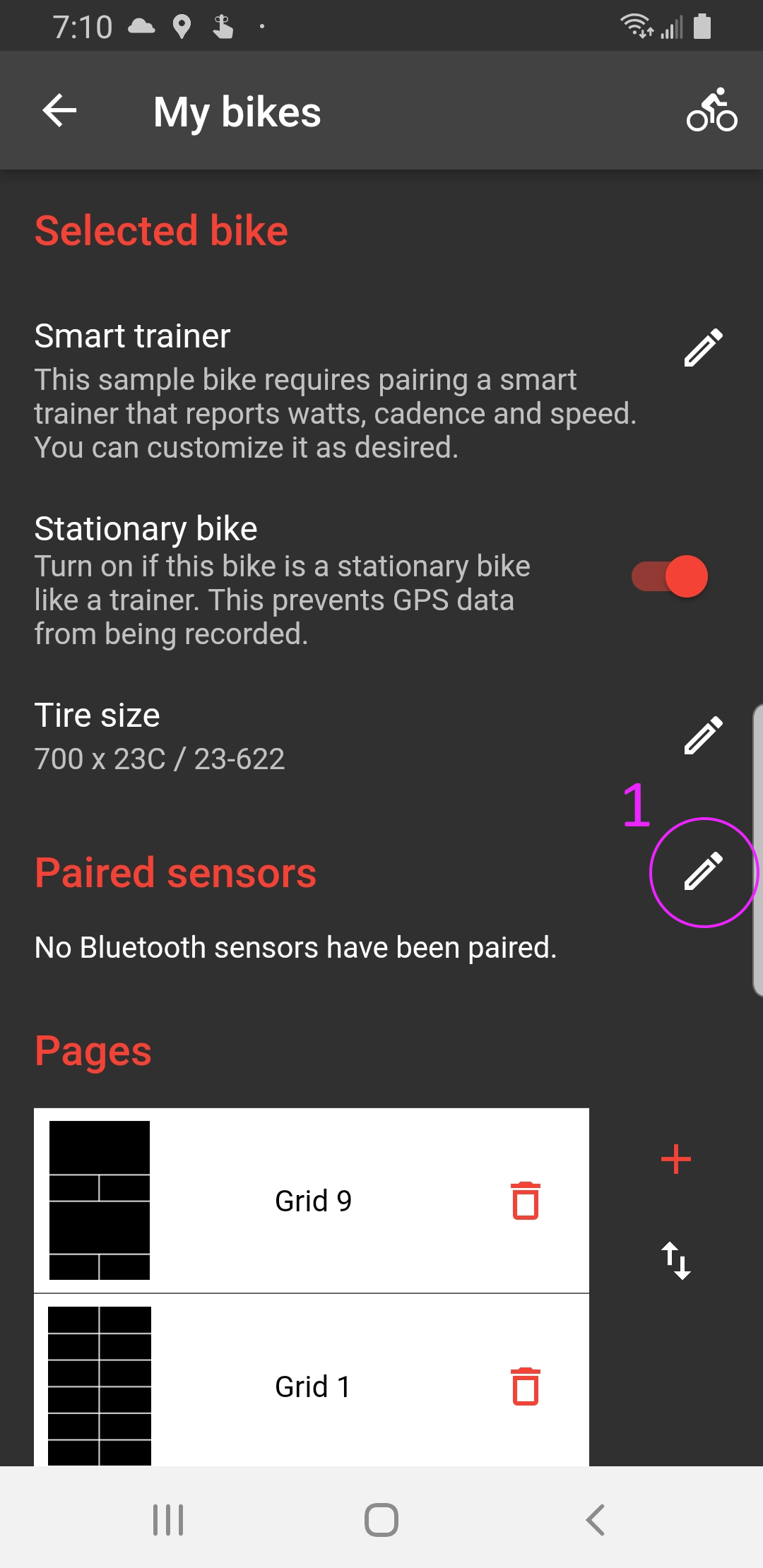
1. Tap Scan for sensors
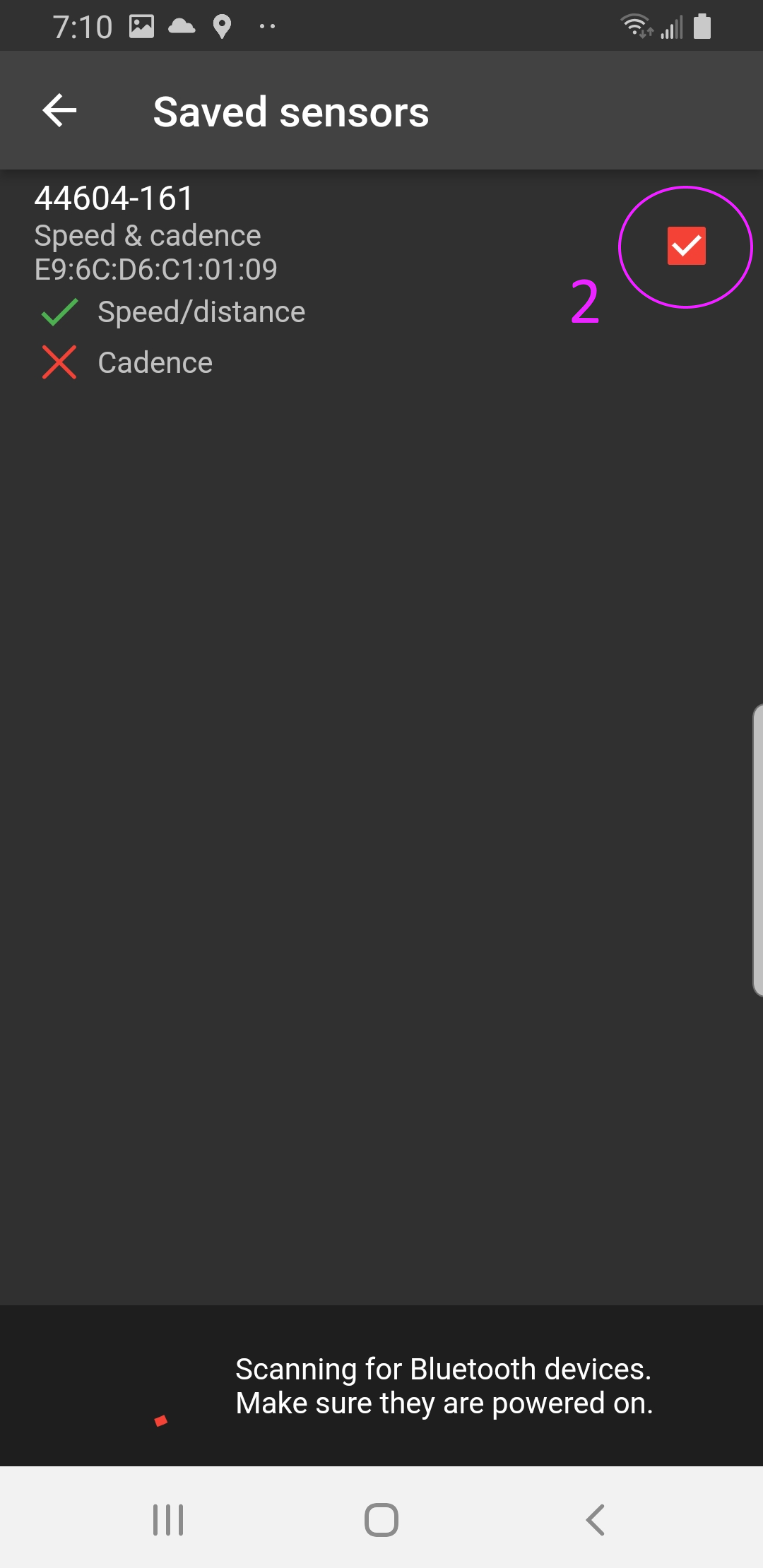
2. Add to Sensor library
Step 2: Pair the sensor with your bike
SuperCycle supports multiple bike profiles (e.g., "Road Bike", "Gravel Bike", "Smart Trainer"). Because different bikes have different sensors, tire widths, and odometers, sensors are assigned directly to bike profiles.
Go to Bikes → [Your Bike Profile] → Sensors, select the sensor from your Sensor library, and assign it to that bike:
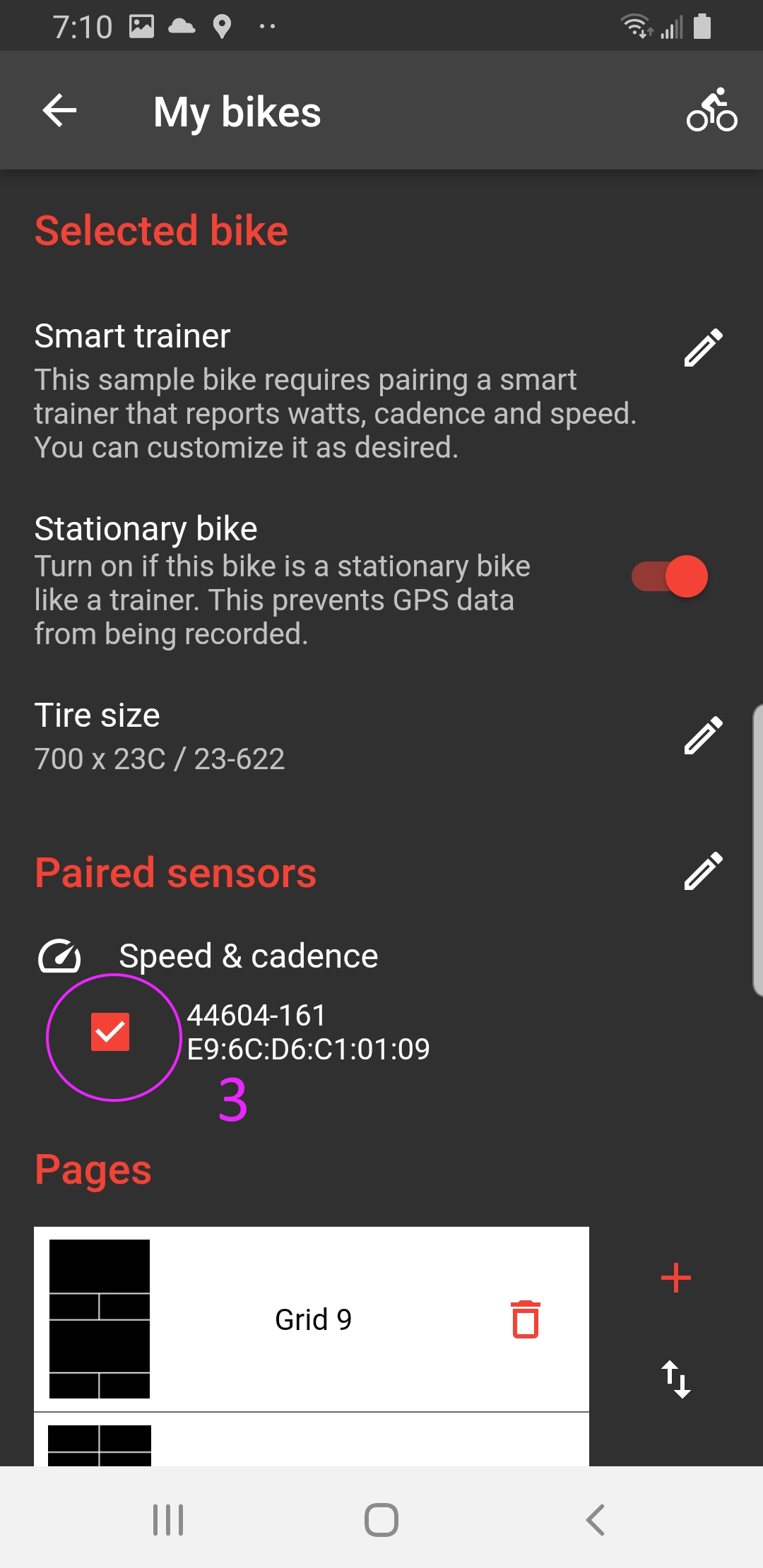
Assign the sensor to your bike profile
Step 3: Crucial for speed sensors — Set your tire circumference
When pairing a physical wheel speed sensor, SuperCycle calculates speed and distance from wheel revolutions multiplied by your tire circumference:
To configure your tire size:
- Go to Bikes → [Your Bike] → Tire size.
- Select your tire size from the built-in preset list (e.g.,
700 x 25C (2105 mm),700 x 28C (2136 mm),29" x 2.2" (2298 mm)). - Or choose Custom and enter your precise roll-out circumference in millimeters.
Indoor Trainer Gotcha: Axle & Roller Circumference
If you are pairing an indoor trainer, roller system, or direct-drive smart trainer broadcasting speed via the Bluetooth Cycling Speed and Cadence (CSC) profile, check your trainer's manual.
Some trainers report revolutions of the internal axle, roller, or flywheel rather than full bike wheel revolutions. Because an axle or roller circumference is dramatically smaller (often 100–700 mm) than an outdoor bicycle wheel (~2,100 mm), leaving the setting at standard 700c will cause speed and distance to read absurdly high (e.g., 60–120+ mph / 100–200+ km/h).
If your trainer broadcasts roller or axle RPM, select Custom in the tire size picker and enter the exact manufacturer-specified circumference in millimeters.
Step 4: Configure display widgets to show sensor data
SuperCycle gives you complete control over which data source powers each widget cell on your dashboard. You can configure any cell to display data from your sensor instead of phone GPS:
- On the main ride screen, long-press the widget you want to configure.
- In the configuration dialog, set Data source to your sensor (in this example, Speed & cadence).
- Under Data field, choose the desired metric (in this example, Speed):
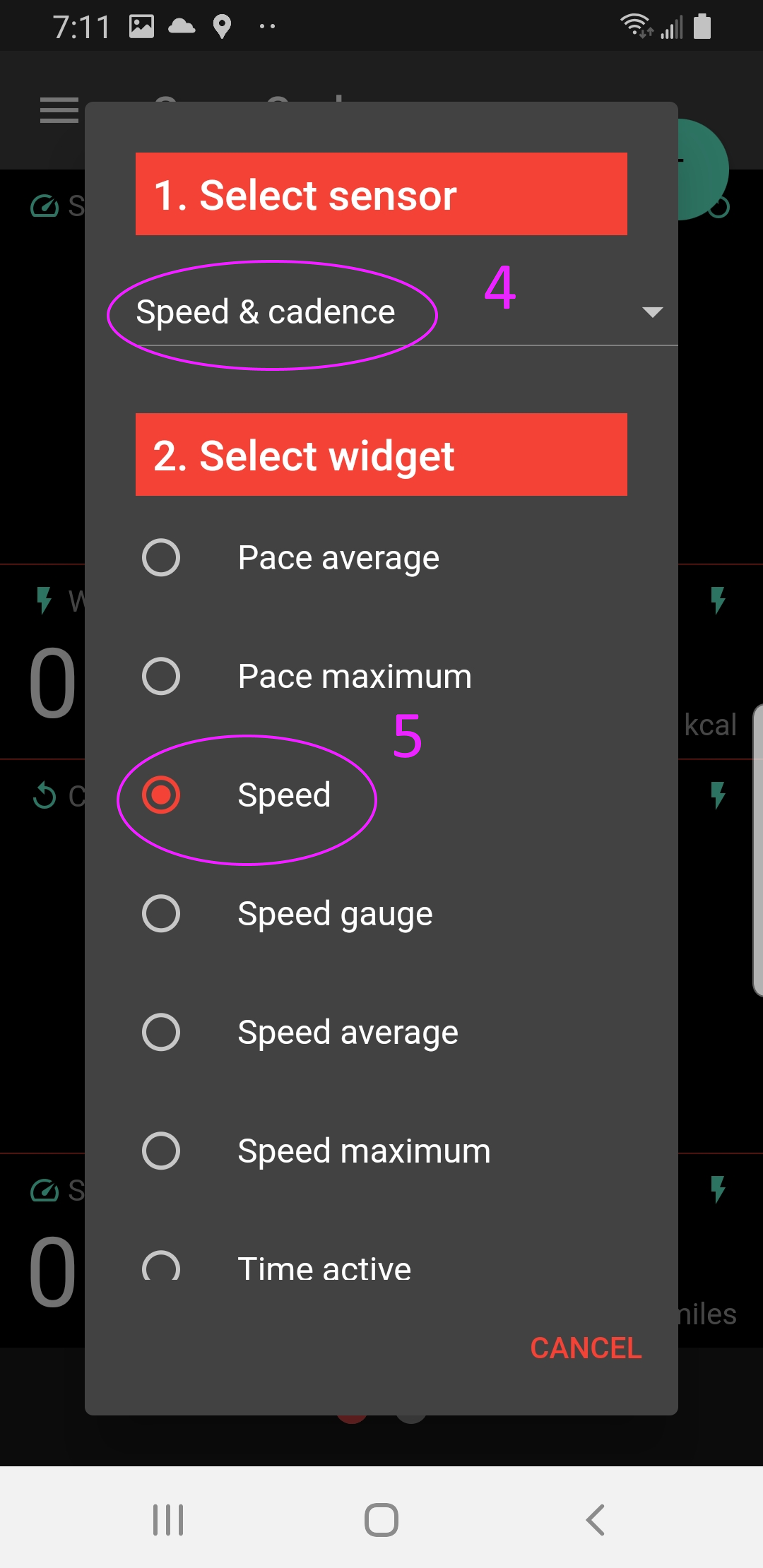
Long-press widget to select sensor data source and metric
Step 5: Verify live telemetry
Tap OK to save the widget configuration. The widget is now armed and ready to display real-time data:
- The widget title shows the active metric (Speed).
- The upper-right corner shows a sensor icon confirming the metric is fed by your Bluetooth sensor.
Spin the wheel or cranks. The widget will immediately begin displaying real-time numerical readings:
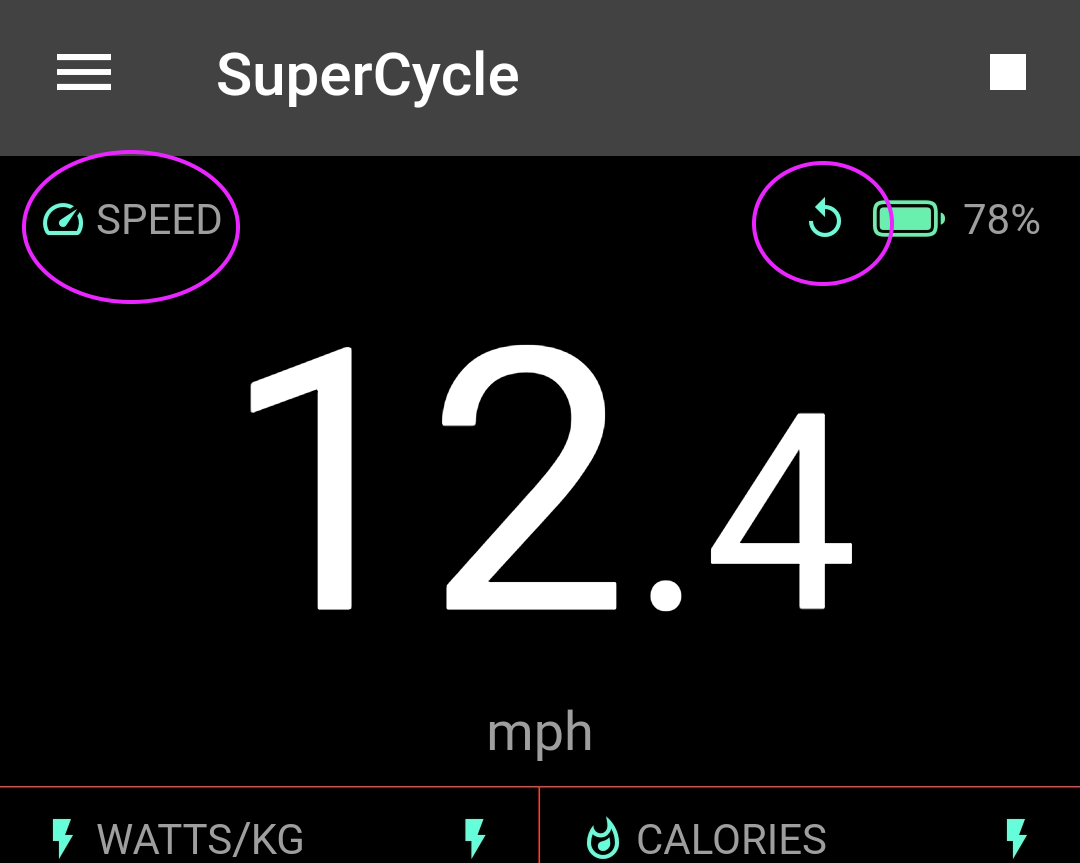
Widget displaying live speed from the speed sensor
Troubleshooting & Pairing Tips
- Do not pair in phone Bluetooth settings: Bluetooth Low Energy (BLE) cycling sensors must connect directly inside the SuperCycle app. If you previously paired the sensor in your phone's OS Bluetooth settings, open your phone's Bluetooth menu and choose "Forget Device".
- Replaced the sensor battery? (Changed ID): When you replace the coin cell (CR2032) battery in some sensors, the sensor generates a new Bluetooth hardware ID. If it stops connecting after a battery swap, delete it from your Sensor library, wake the sensor, and re-scan. See our Sensor Paired but No Data Displayed guide.
- Instant Auto-Pause at Stops: Speed sensors and cadence sensors allow SuperCycle to pause and unpause recording instantly at stoplights without waiting for GPS wake-up latency. See How Auto-Pause Works.
- Single Bluetooth connection limit: Standard Bluetooth Low Energy (BLE) sensors typically maintain only one active Bluetooth connection at a time. If your sensor is connected over Bluetooth to another phone, a smartwatch, or an indoor cycling app like Zwift, disconnect it from that device so SuperCycle can pair.
Dual-protocol sensors (ANT+ & Bluetooth): Many modern sensors support both ANT+ and Bluetooth simultaneously. While SuperCycle connects via Bluetooth, your sensor can simultaneously broadcast its metrics over ANT+ to a dedicated bike computer (e.g., Garmin, Wahoo) or sports watch. ANT+ broadcasts operate on a separate channel and do not interfere with SuperCycle's Bluetooth connection. - Permissions: Ensure SuperCycle has permission to access Nearby Devices (Android 12+) and Location (required by mobile operating systems to scan for Bluetooth beacons).
- Audio Reconnect Chimes: Enable Settings → Sensors → Sensor reconnect chime so you receive immediate audio feedback whenever sensors connect or disconnect mid-ride.